Guide
Video to Image Sequence: How to Extract Many Frames
Published

An image sequence is a folder of pictures, one for each moment you sampled from a video: frame_0001.png, frame_0002.png and so on. People use them for animation reference, motion analysis, training material, storyboards and visual notes.
The short answer: decide how many frames you really need. If you need a few dozen well-spaced frames, a browser tool is quick: the DailyBox Video Thumbnail & Contact Sheet Maker extracts up to 100 frames per run by count or by time interval and exports them as a ZIP, without uploading the video. If you really need every frame of a video, you need a desktop tool such as FFmpeg, and this article shows the commands.
First, do you need every frame?
"All frames" sounds simple, but the numbers get big quickly:
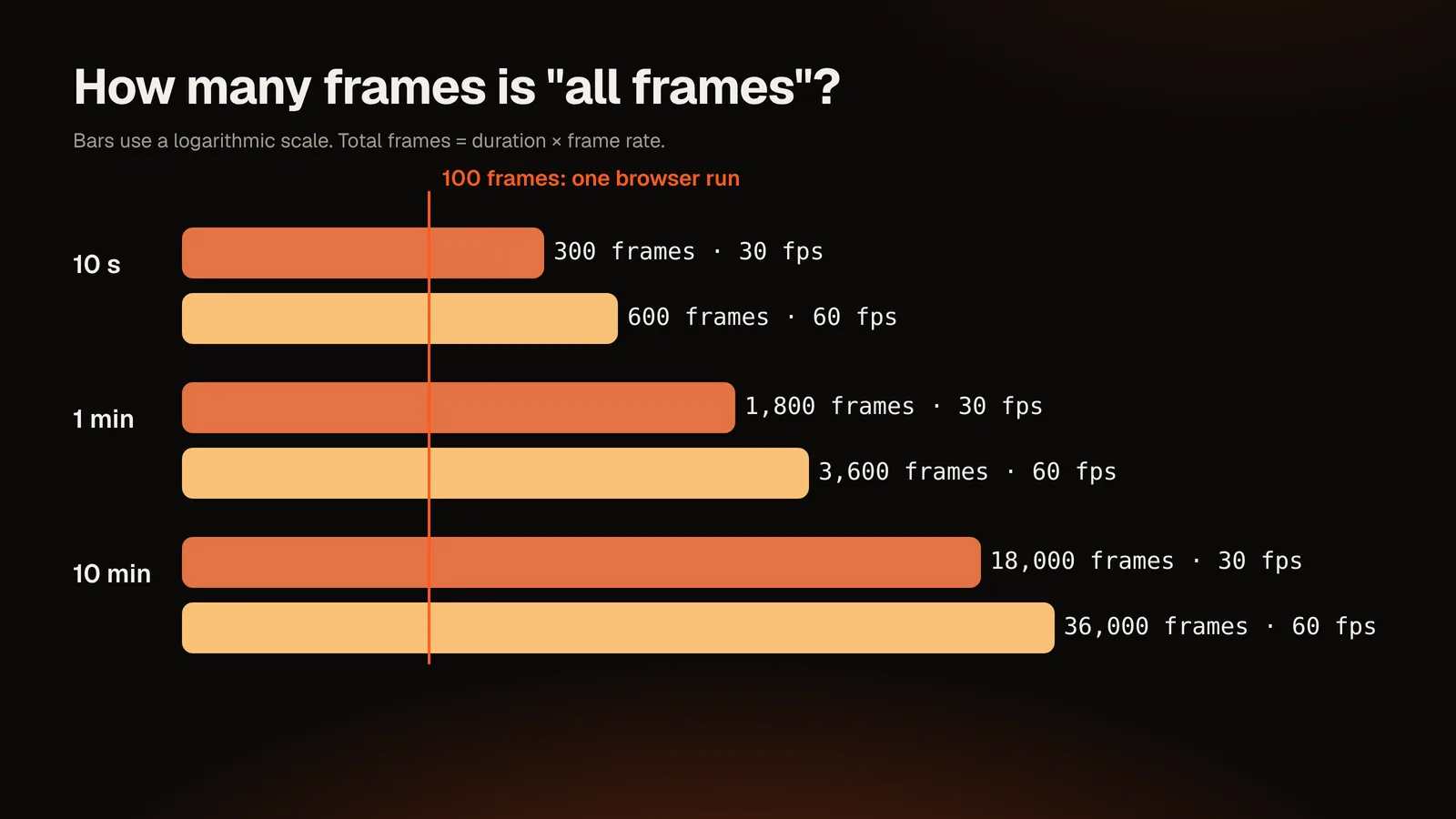
| Video | Frame rate | Total frames |
|---|---|---|
| 10 seconds | 30 fps | 300 |
| 1 minute | 30 fps | 1,800 |
| 1 minute | 60 fps | 3,600 |
| 10 minutes | 30 fps | 18,000 |
Neighbouring frames are almost identical. Unless you are analysing motion frame by frame, sampling one frame every second (or every few seconds) tells the same story with a thousandth of the storage. Ask: do I need smooth motion, or do I need representative moments?
Option 1: a browser tool for up to 100 frames per run
This is the fastest route for storyboards, reference sheets and visual summaries.
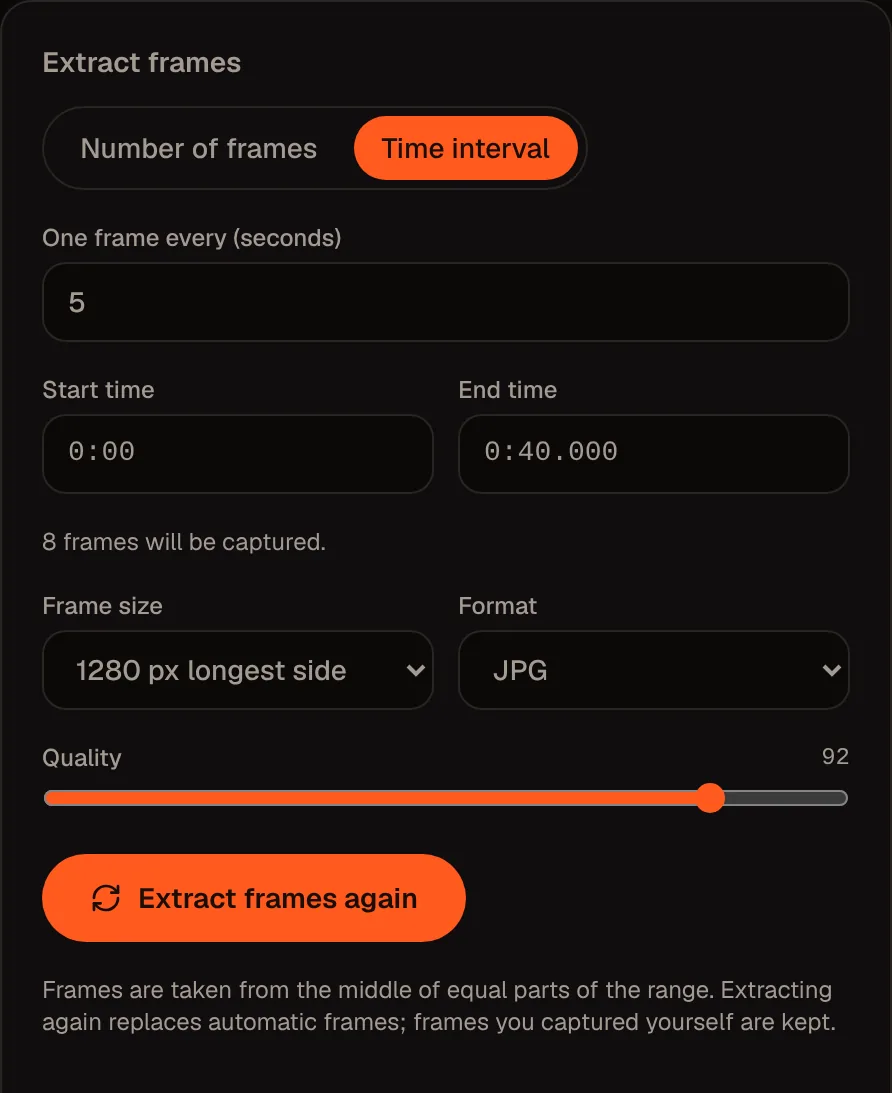
Choose a mode
- By count: you choose N frames; the tool takes one from the middle of each of N equal parts of the range.
- By interval: you choose a number of seconds; frames are taken at the start time, then every interval until the end time (the end itself is not included).
- Start and end: extract only the section you care about.
How many frames will you get?
| Range | Mode | Result |
|---|---|---|
| 0:00–10:00 | Every 30 s | 20 frames |
| 0:00–10:00 | Every 6 s | 100 frames (the single-run limit) |
| 0:00–10:00 | Every 5 s | 120 frames requested; only 100 are kept (a notice tells you the rest were skipped) |
| 1:00–2:00 | Every 2 s | 30 frames |
| Whole 40 s clip | 12 frames | One frame per 3.33 s, from the middle of each part |
Output options
- Size: original, or longest side of 1920, 1280, 960, 640 or 480 pixels; frames are never enlarged beyond the original.
- Format: JPG, PNG, or WebP when your browser can save it.
- Quality: adjustable for lossy formats.
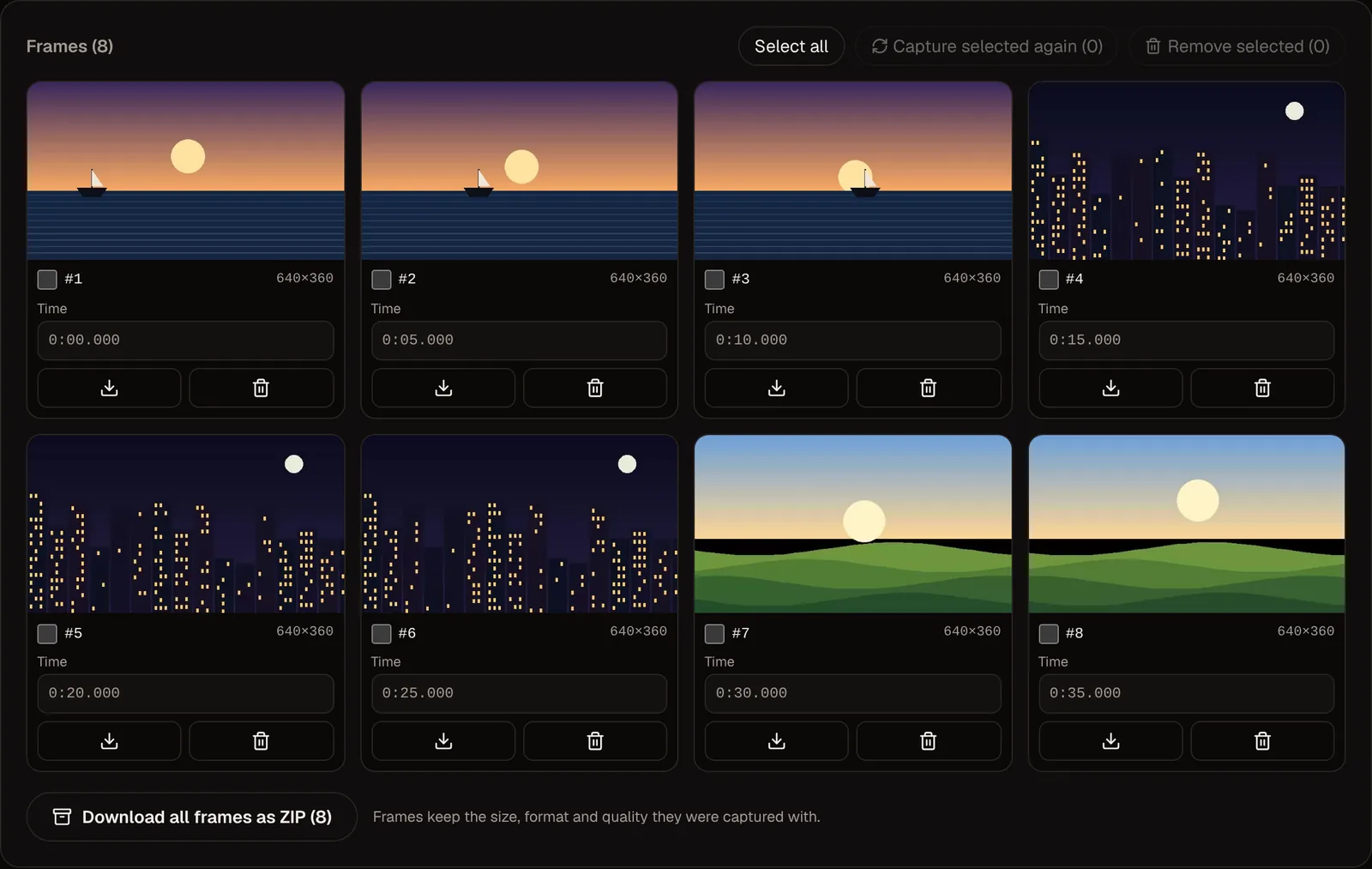
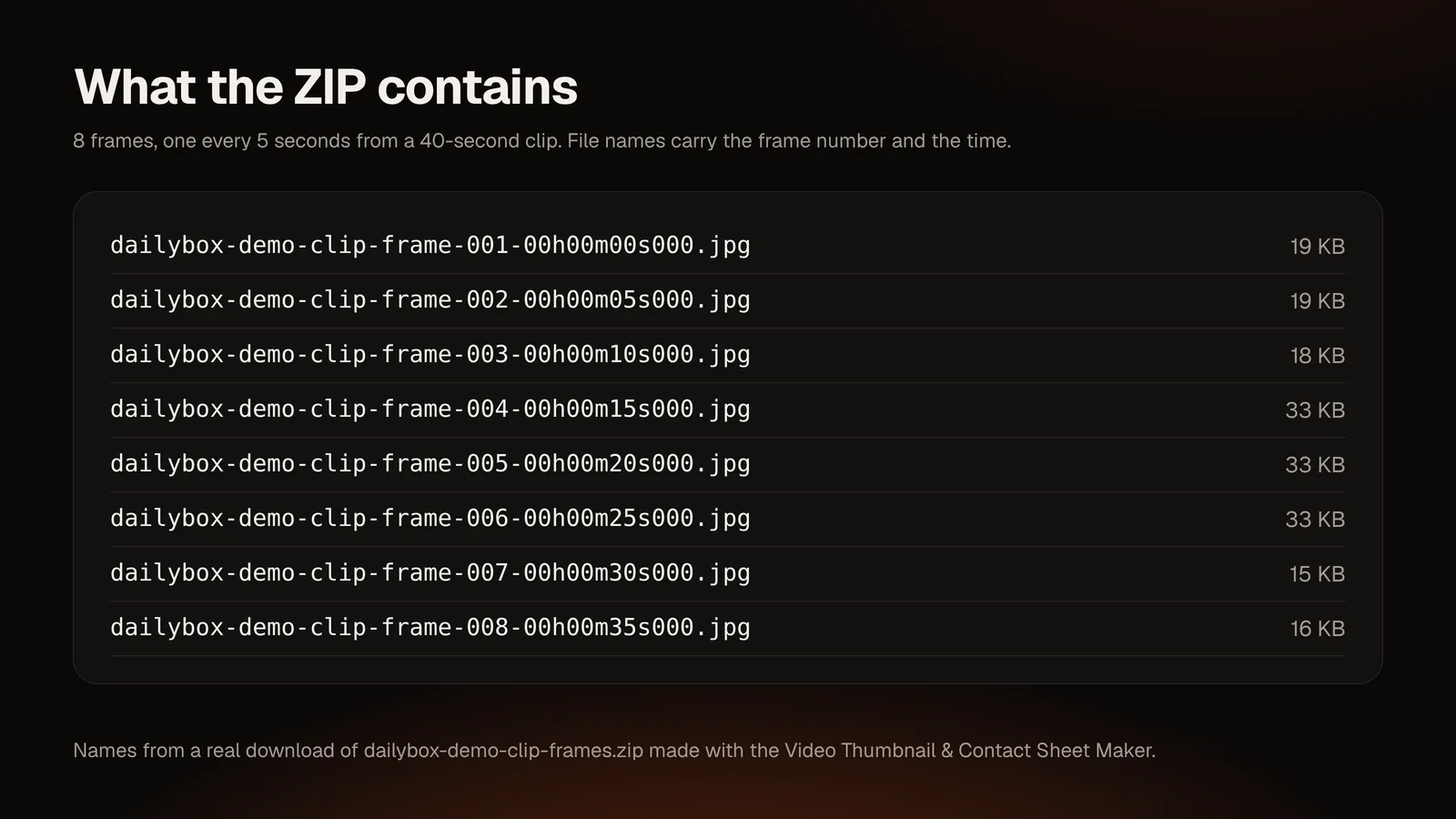
When extraction is finished, download individual frames or all frames as a ZIP. The ZIP keeps the size, format and quality you captured with. File names include the frame number and time, which keeps the order clear.
Performance and limits
A single run is limited to 100 frames and a session to 150, partly to protect your browser's memory. Extraction is sequential with a progress bar; you can cancel and keep what was captured. The first run on a very long or high-resolution video takes longer because the browser has to seek and decode each position.
If a video will not load, the codec is probably not supported by your browser. MP4 (H.264) and WebM are the most reliable.
Option 2: FFmpeg for every frame, or very long videos
FFmpeg is a free command-line tool that reads far more formats than a browser and has no frame limit. These commands are standard FFmpeg usage; check your version's documentation.
One frame per second as PNG:
ffmpeg -i input.mp4 -vf fps=1 frame_%04d.pngOne frame every 10 seconds:
ffmpeg -i input.mp4 -vf fps=1/10 frame_%04d.pngEvery frame:
ffmpeg -i input.mp4 frame_%06d.pngOnly a section (1:00 to 2:00), two frames per second:
ffmpeg -ss 00:01:00 -to 00:02:00 -i input.mp4 -vf fps=2 frame_%04d.pngJPG output with high quality (lower q means better quality):
ffmpeg -i input.mp4 -q:v 2 frame_%04d.jpgUse %04d for up to 9,999 frames and %06d for more; the number of digits controls zero-padding so files sort correctly.
Which should you use?
| Need | Browser tool | FFmpeg |
|---|---|---|
| A handful of exact frames | Yes: type a timestamp | Possible, but slower to iterate |
| 20–100 spread frames with a visual preview | Yes | Yes |
| Every frame of a clip | No (100 per run) | Yes |
| Rare formats (MKV, AVI, ProRes) | Only if the browser can play it | Yes |
| No installation | Yes | No |
| Video must not leave your device | Yes (processed locally) | Yes |
Organizing a sequence
- Name for sorting. Zero-padded numbers keep frames in order.
- Keep the time. If timestamps matter, choose an interval mode and note the interval in the folder name (for example
interview_every-5s). - Pick PNG for analysis or text, JPG for volume. PNG is lossless but larger; JPG saves space.
- Resize on export if you do not need full resolution; 1,000 frames at full resolution add up.
- Compress afterwards if needed with an image compressor.
Common questions about "frame by frame"
- Why is frame 1 sometimes black? Many videos start with a black frame or fade-in. Start a little later.
- Why do I see duplicate-looking frames? At high frame rates, neighboring frames differ very little. Increase the interval.
- Why are frames slightly off the requested time? Browsers seek to the nearest decodable position. Nudge the time by 0.1 s and check the result.
- Variable frame rate videos (common in screen and phone recordings) do not have evenly spaced frames, so frame numbers are not exactly proportional to time.
Conclusion
Most people who search for "all frames" actually need representative frames. Pick an interval, extract up to 100 frames in the browser and download a ZIP. Reserve FFmpeg for the cases where every frame or an unusual format is required.
Try the browser route: open the Video Thumbnail & Contact Sheet Maker, set an interval and download your sequence as a ZIP. For single exact frames, read How to Extract Frames from a Video Online.
Notes: Frame-count tables are computed from the tool's scheduling rules (interval mode excludes the end time; 100 frames per run, 150 per session). FFmpeg commands are standard usage and should be checked against the documentation for your installed version.
Questions and answers
Can I extract all frames from a video online?
Not reliably in a browser: very long videos mean thousands of images and heavy memory use. DailyBox's tool extracts up to 100 frames per run. For every frame, use FFmpeg or similar desktop software.
How do I convert a video to a JPG or PNG sequence?
Choose JPG or PNG as the format, generate frames by count or interval, then download the ZIP. For every frame, use the FFmpeg commands above.
What interval should I choose?
For summaries, 5–30 seconds. For motion study, 0.1–1 second over a short section. Use start and end to avoid sampling the whole video.
Are my videos uploaded?
No. In the browser tool the video is processed locally. FFmpeg also runs locally.
Can I get higher resolution than the video?
No. Frames can be saved at the video's size or smaller; the tool never enlarges them.
Will it work with any video file?
Only those your browser can decode. If a file will not play in the preview, convert it to MP4 (H.264) first.
How do I make a single overview image from the frames?
Use a contact sheet. See How to Create a Video Contact Sheet.