Guide
How to Extract Frames from a Video Online
Published
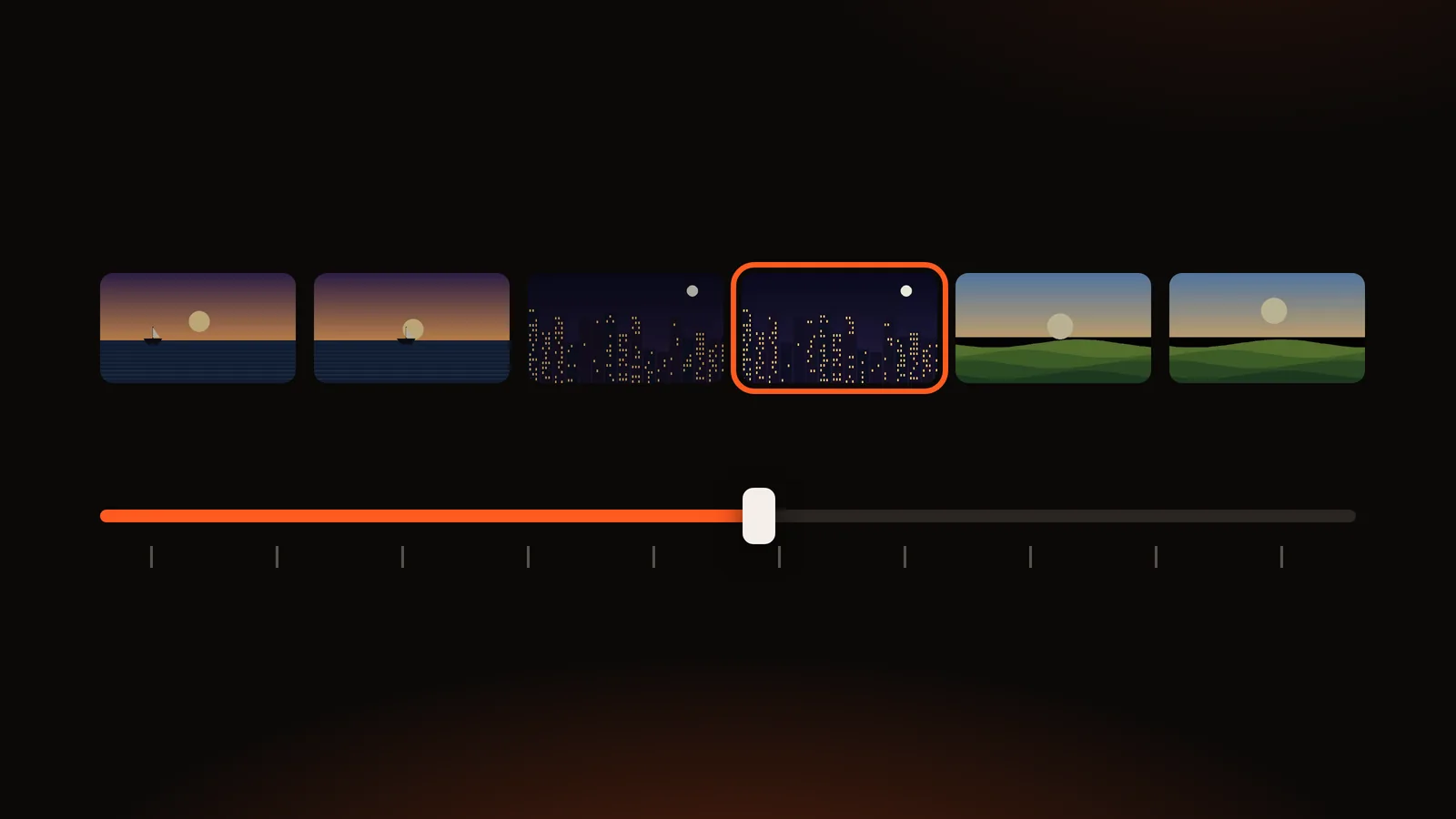
Sometimes you do not need the video, just one moment of it: a face mid-smile, the slide at 12:41, the frame where the logo appears. Saving that moment as an image is called extracting (or grabbing) a frame, and you can do it in a browser without installing anything.
The short answer: open your video in a browser-based frame extractor, move to the exact time you want, capture the frame and download it as JPG, PNG or WebP. In the DailyBox Video Thumbnail & Contact Sheet Maker you can type a timestamp, nudge by 1 second or 0.1 second, capture the current frame, or extract a set of evenly spaced frames and download them as a ZIP. The video stays on your device and is never uploaded.
Before you start: will your video play?
The tool uses your browser's own video decoder, so it can only read videos your browser can play. In practice:
- MP4 (H.264) and WebM (VP8/VP9) are the safest bets.
- MOV files from phones may use HEVC (H.265), which some browsers play and others do not, depending on the browser and operating system.
- AVI, MKV, WMV and unusual codecs often will not play in a browser at all.
A quick test: if the file plays in the tool's preview, it can be extracted. If it does not, you will see a message that the format or codec is not supported. In that case convert the video to MP4 (H.264) first with a desktop converter, then try again. We cannot promise support for every format, because it depends on your browser and device.
Step by step: capture a single frame
1. Load the video
Drag the file onto the page or browse for it. The tool shows the file name, duration, dimensions (for example 1920 × 1080) and file size, so you can confirm it is the right clip.
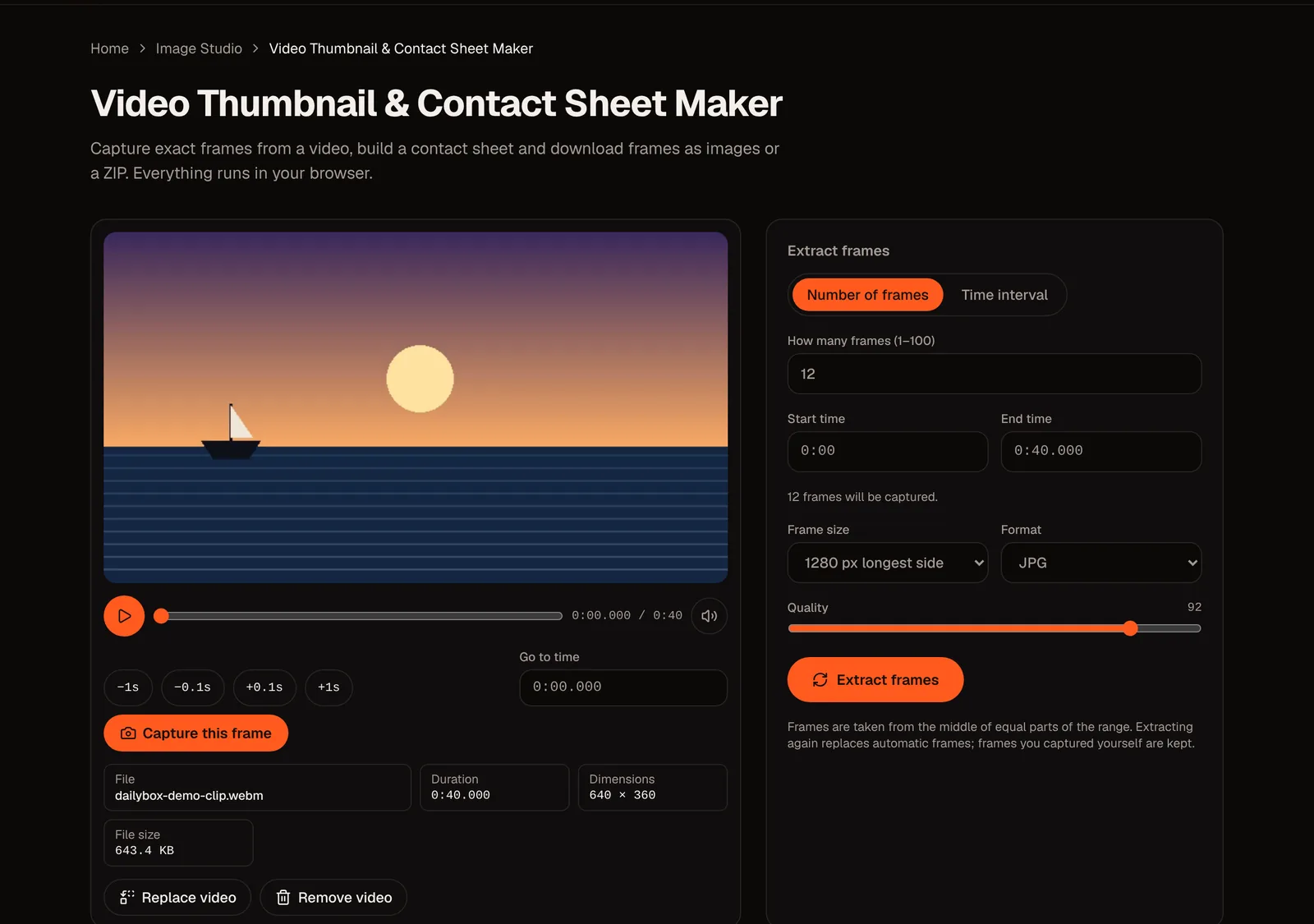
2. Find the moment
Use the player controls (play, pause, timeline) to get close. Then refine:
- Type a time into the go-to field. Formats like
75,1:15or01:15.250all work. - Use the step buttons: −1 s, −0.1 s, +0.1 s and +1 s.
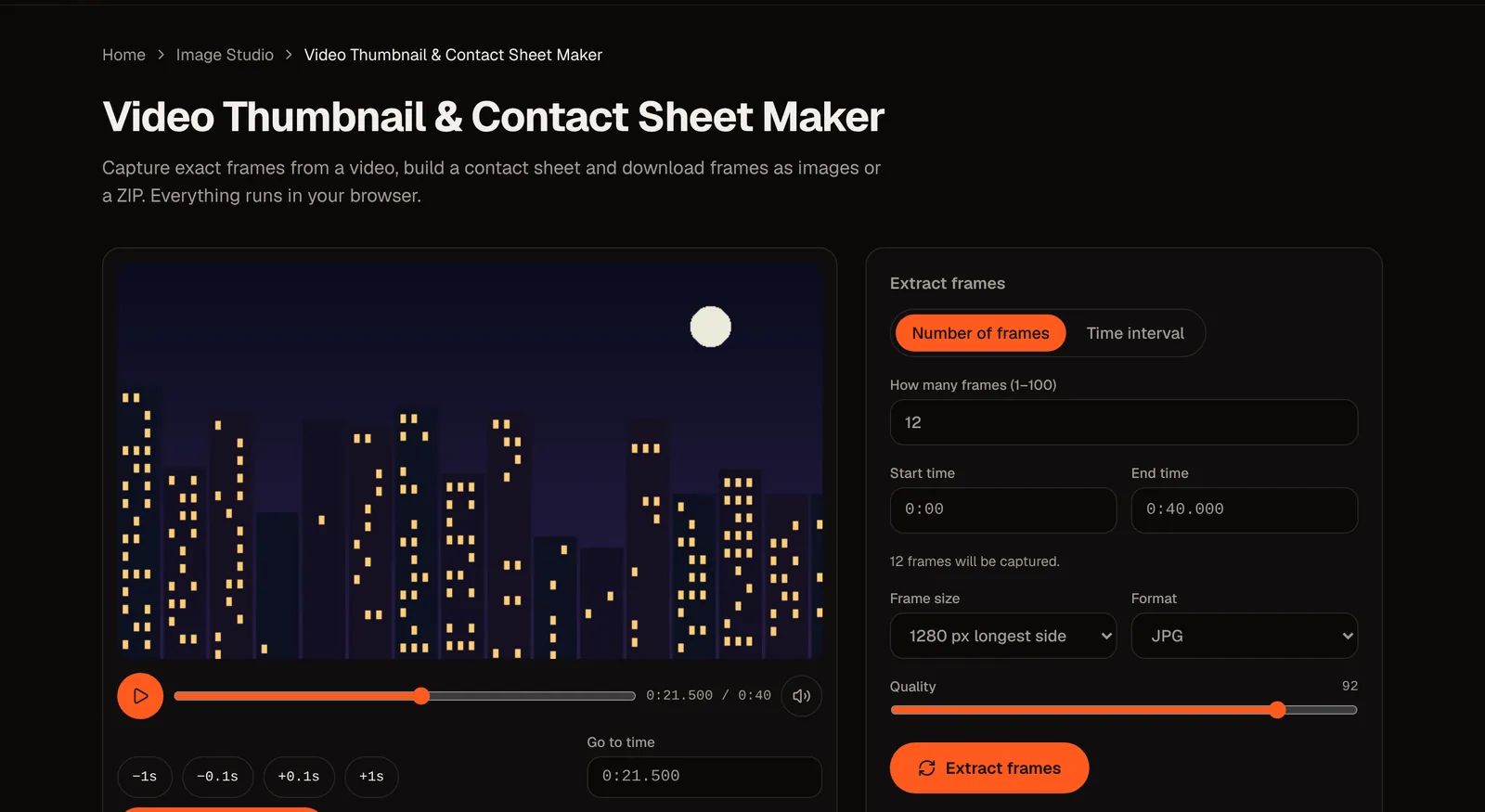
Frame-level accuracy matters because at 30 frames per second one frame lasts about 0.033 seconds. The 0.1 s step is about three frames at that speed. A tip: pause the video, step to just before the moment and walk forward until the subject looks right.
3. Capture
Press the capture button. The frame appears in the frames list with its timestamp. Capture as many as you want, in any order.
4. Check, adjust and download
For each frame you can select it, change its time, recapture it, remove it or download it. Frames are saved in the format you chose: JPG (small files), PNG (lossless, best for text and graphics) or WebP (small, where your browser supports saving it).
Extract many frames at once
If you want a spread of frames rather than one, use the generate options:
- By count: choose how many frames (the tool takes one from the middle of each equal part of the range you set).
- By interval: choose a number of seconds between frames.
- Start and end: limit extraction to a section of the video.
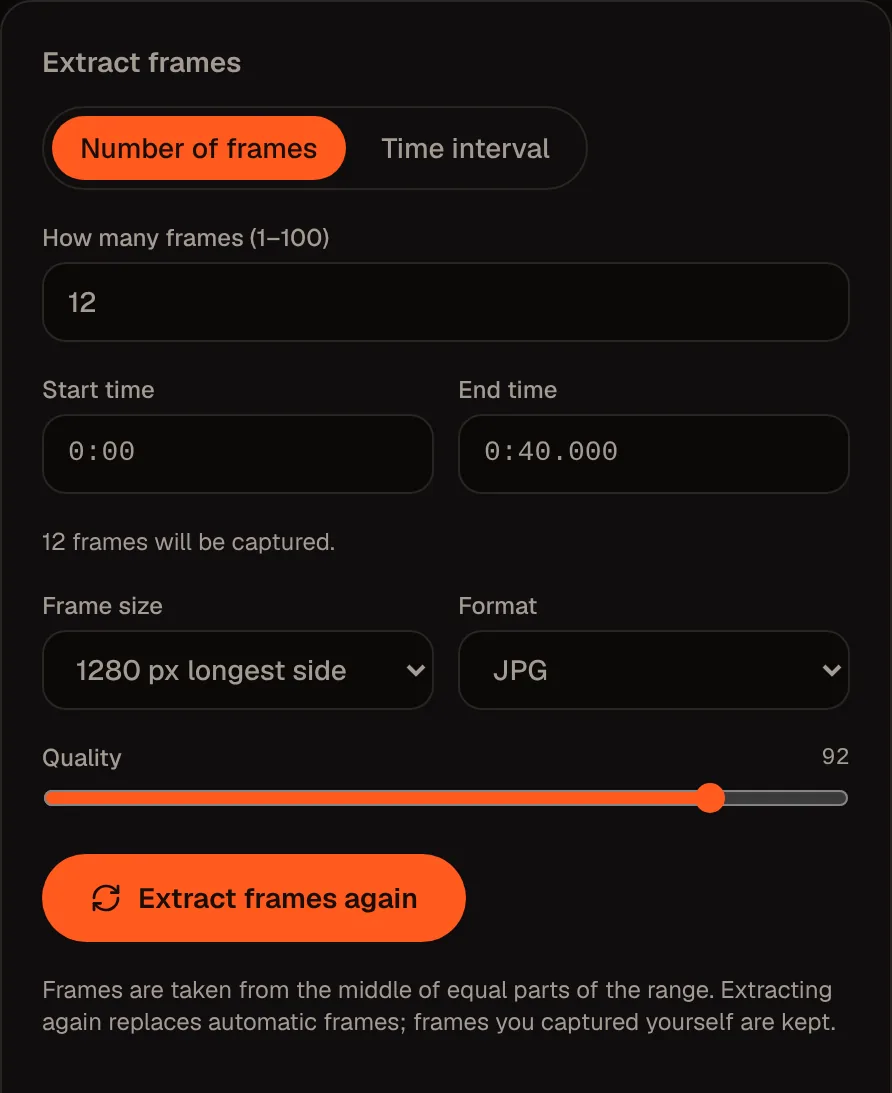
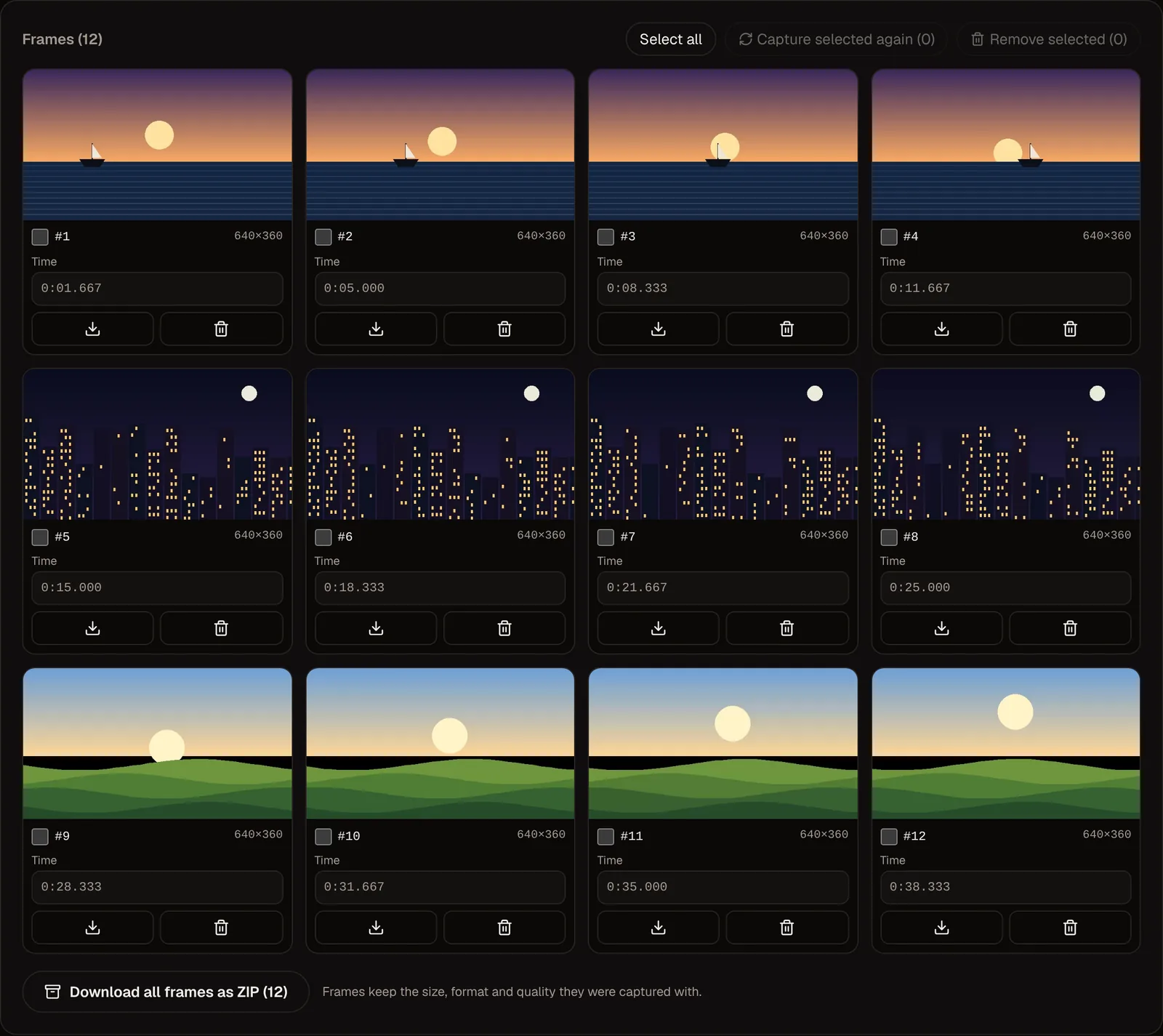
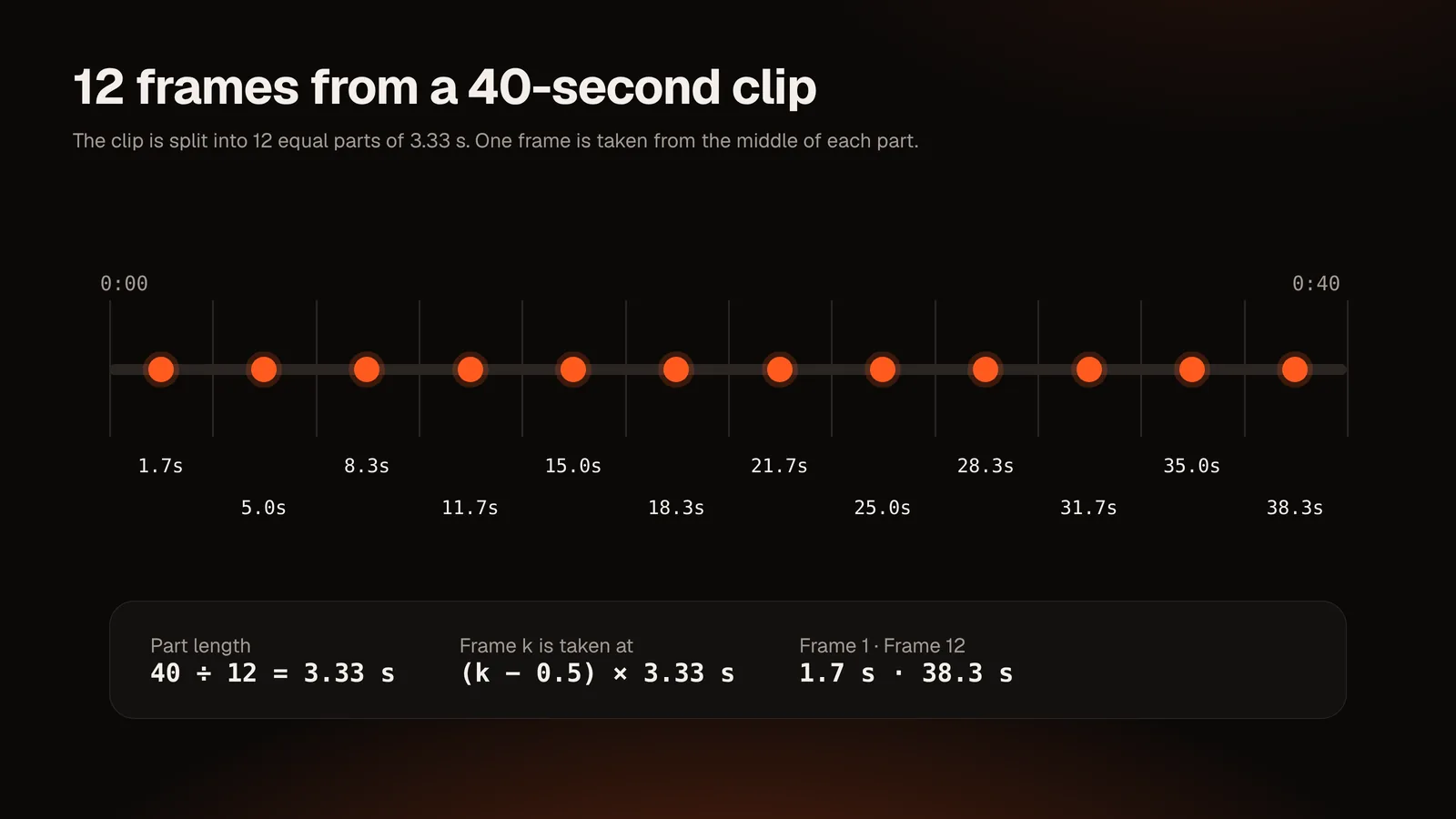
A worked example for a 40-second clip with 12 evenly spaced frames, using the whole video:
| Frame | Time | Frame | Time |
|---|---|---|---|
| 1 | 0:01.667 | 7 | 0:21.667 |
| 2 | 0:05.000 | 8 | 0:25.000 |
| 3 | 0:08.333 | 9 | 0:28.333 |
| 4 | 0:11.667 | 10 | 0:31.667 |
| 5 | 0:15.000 | 11 | 0:35.000 |
| 6 | 0:18.333 | 12 | 0:38.333 |
Each part of the video is 40 ÷ 12 = 3.333 seconds long, and the frame comes from the middle of each part. Sampling the middle avoids the very first and last frames, which are often black or transitional.
You can choose the output size (original, or longest side of 1920, 1280, 960, 640 or 480 pixels; the tool never enlarges beyond the original), the format and the quality. When you are done, download all frames as a ZIP, or download individual frames. A progress bar shows extraction in progress and you can cancel it without losing frames already captured.
Limits: a single run produces at most 100 frames, and a session can hold at most 150. If you need every frame of a clip, see Video to Image Sequence.
Which format should you save?
| Format | Best for | Watch out for |
|---|---|---|
| JPG | Photos, sharing, small files | Lossy; repeated saving reduces quality |
| PNG | Screenshots of slides, text, graphics, editing later | Larger files |
| WebP | Web use with small files | Not every app opens it; the option only appears when your browser can encode it |
If the quality slider is available, around 90 is a sensible balance between file size and detail for JPG and WebP.
Getting the best-looking frame
- Resolution is capped by the video. A 640 × 360 video cannot yield a sharp 4K image; a frame is just a picture at the video's own size.
- Motion blur is baked in. Fast movement creates blurry frames. Step a few frames either side to find a sharper one.
- Compression artifacts appear in dark or fast-moving scenes. Choose a calmer moment if you can.
- Avoid transitions. Frames at scene changes can be a blend of two shots.
- Screen recordings are the easiest source: text is crisp. Use PNG for those.
Troubleshooting
| Symptom | What to try |
|---|---|
| "Format or codec not supported" | Convert the video to MP4 (H.264) and retry |
| The preview plays but the frame is black | Move a few frames forward; the first frame of some videos is black |
| The extracted frame looks like a slightly different moment | Some videos only store full pictures at intervals; step by 0.1 s until it matches, then recapture |
| Very large video is slow | Extract fewer frames, choose a smaller output size or narrow the start/end range |
| Browser tab runs out of memory | Reduce the frame count or size; close other tabs; avoid keeping many large PNG frames |
Is it private?
The video is opened with a temporary link that exists only in your browser and is released when you remove the video or leave the page. The file is not sent to DailyBox servers and no account is needed. This also means very large files depend on your device's memory and speed.
Other ways to do it
- A video player's screenshot function is quick for one casual frame but often captures at screen size, with player overlays or at the wrong time.
- Desktop tools such as VLC or FFmpeg can export many or all frames, and can read more formats than a browser can. For example, FFmpeg can save one frame at 10 seconds with
ffmpeg -ss 00:00:10 -i input.mp4 -frames:v 1 frame.png. - Browser tools are the quickest for a handful of precise frames with no installation, which is where this tool fits.
Conclusion
Extracting frames comes down to three choices: the exact moment, the output format and how many frames you need. For one precise frame, type the timestamp and capture it. For a spread, generate evenly spaced frames and download the ZIP.
Try it: open the Video Thumbnail & Contact Sheet Maker, drop in a video and capture your first frame. If you want an overview of the whole video first, build a contact sheet.
Notes: The 40-second table is computed from the tool's documented scheduling (middle of equal parts). The FFmpeg command is standard FFmpeg usage; check your installed version's documentation.
Questions and answers
How do I save a frame from a video as an image?
Open the video in a frame extractor, move to the exact time, capture the frame and download it. With the Video Thumbnail & Contact Sheet Maker, enter the timestamp, press capture and download JPG, PNG or WebP.
Is the video uploaded to a server?
No. The video is processed in your browser.
Which video formats are supported?
Whatever your browser can play. MP4 (H.264) and WebM are the most reliable; some other formats and codecs will not work and the tool will tell you.
How accurate is the timestamp?
You can enter times to the millisecond and step by 0.1 second. Final accuracy depends on how your browser seeks in the video file, so check the captured frame and adjust if needed.
Can I extract every frame of a video?
Not with this tool: it is limited to 100 frames per run. For all frames, use a desktop tool such as FFmpeg. See our guide to extracting many frames.
Can I paste a YouTube or Instagram link?
No. The tool works with video files on your device, not links. Only use videos you have the right to use.
Does it work on a phone?
The interface is responsive, but video decoding and memory limits on phones are tighter than on a computer, so large videos may fail. Try a shorter clip.