Guide
How to Create a Video Contact Sheet
Published
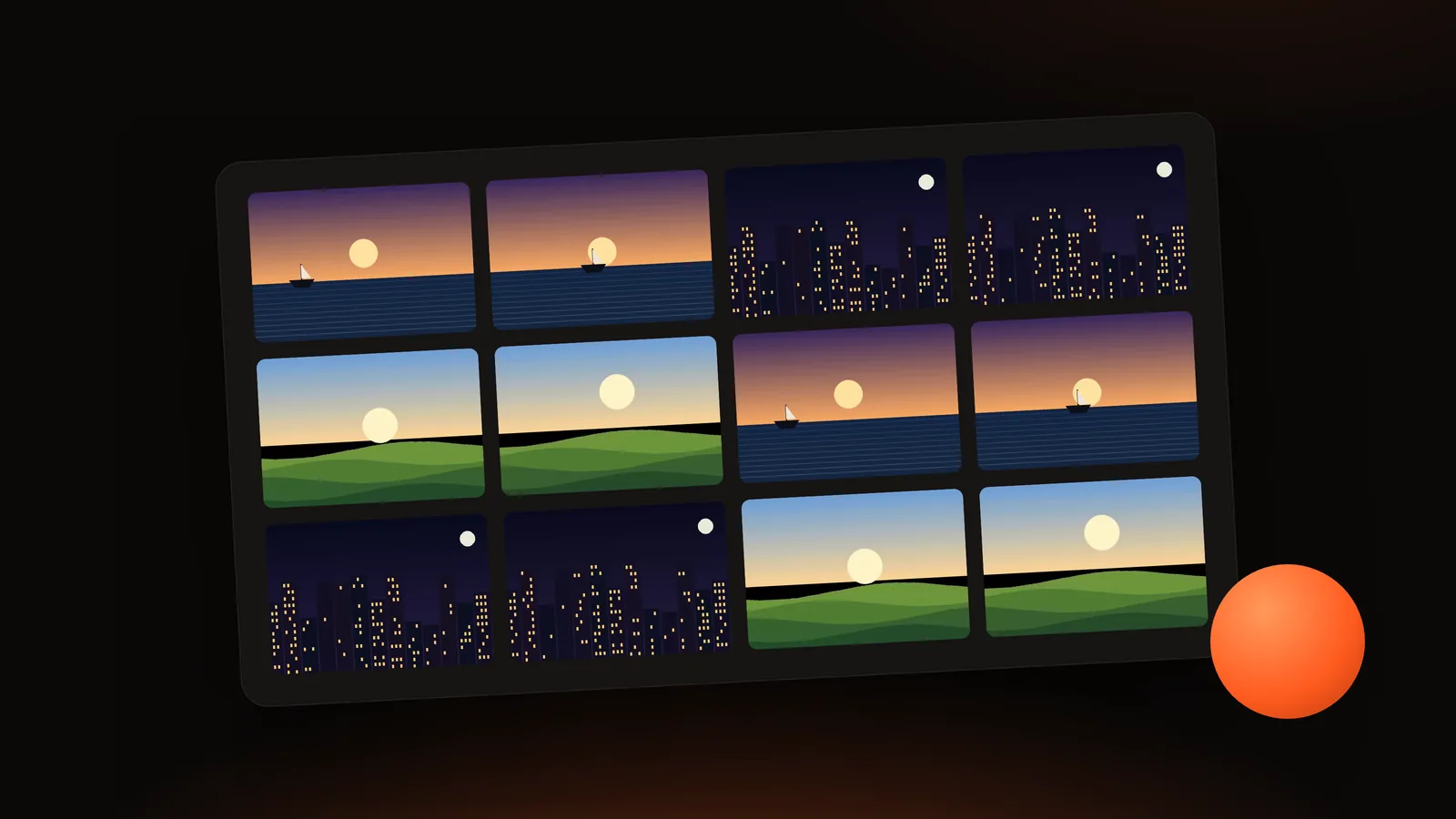
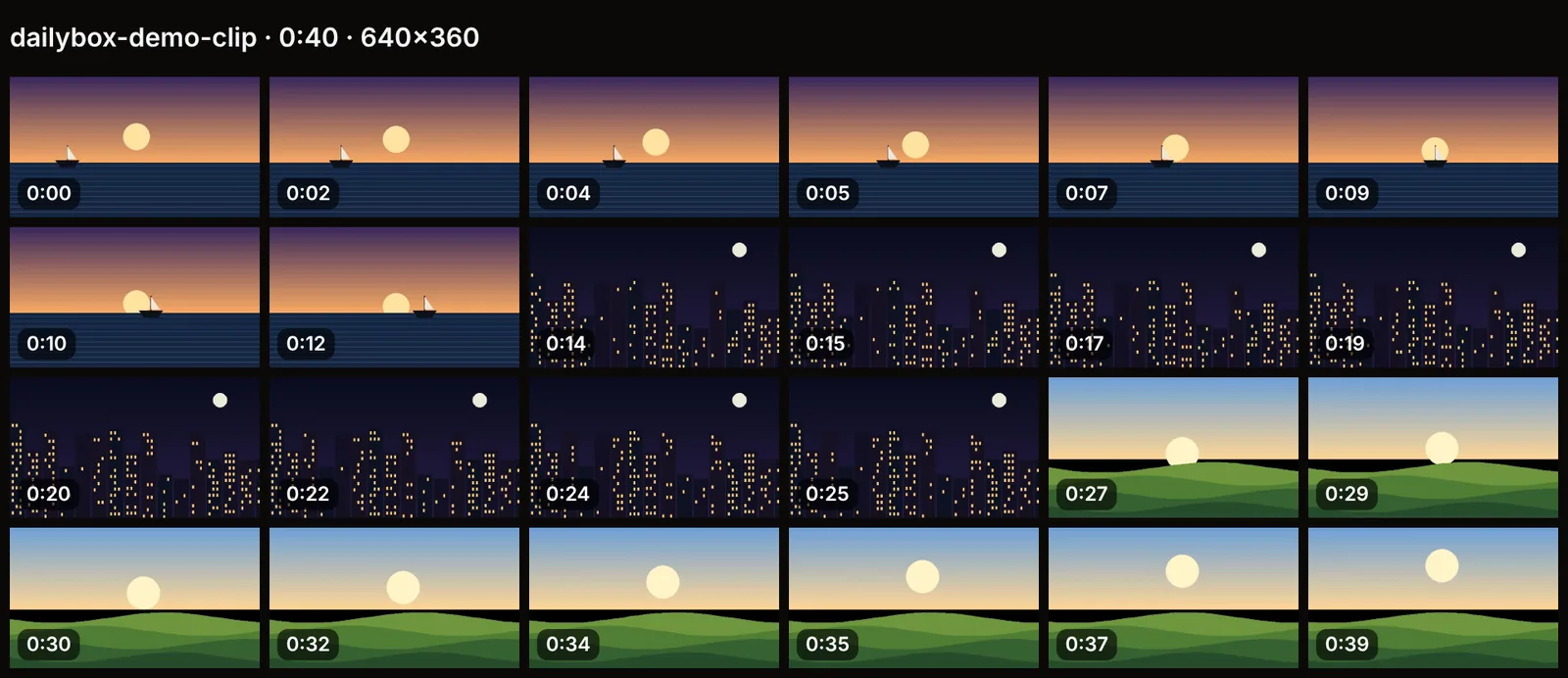
A contact sheet is a single image that shows a video as a grid of small frames, each labelled with its time. The idea comes from photography, where strips of film were printed together on one sheet so you could choose the best shots at a glance. For video, it lets you skim a 40-minute interview in ten seconds, find the right scene, brief an editor or catalog a library.
The short answer: load the video, extract a set of evenly spaced frames, choose how many columns you want, switch on timestamps if useful, preview the sheet and export it as PNG, JPG or WebP. The DailyBox Video Thumbnail & Contact Sheet Maker does this in the browser, so the video never leaves your device.
When a contact sheet helps
- Finding a scene in a long recording without scrubbing.
- Choosing a frame for a cover image or preview: spot the sharpest moment, then capture it exactly.
- Briefing someone (editor, client, translator) with a visual outline plus timestamps.
- Documenting screen recordings, surveillance-style footage review or lesson videos.
- Archiving a video library with one overview image per file.
Step by step
1. Load the video
Drag it in or browse. The tool reports duration, dimensions and file size. If the file will not play, your browser does not support its format or codec; convert to MP4 (H.264) and retry. See How to Extract Frames from a Video Online for the supported formats.
2. Extract the frames
Open the extraction options:
- By count is the easiest start: 12 frames is the default and makes a tidy 4 × 3 sheet.
- By interval is better when time is the point (a frame every 30 seconds).
- Start and end let you focus on a section.
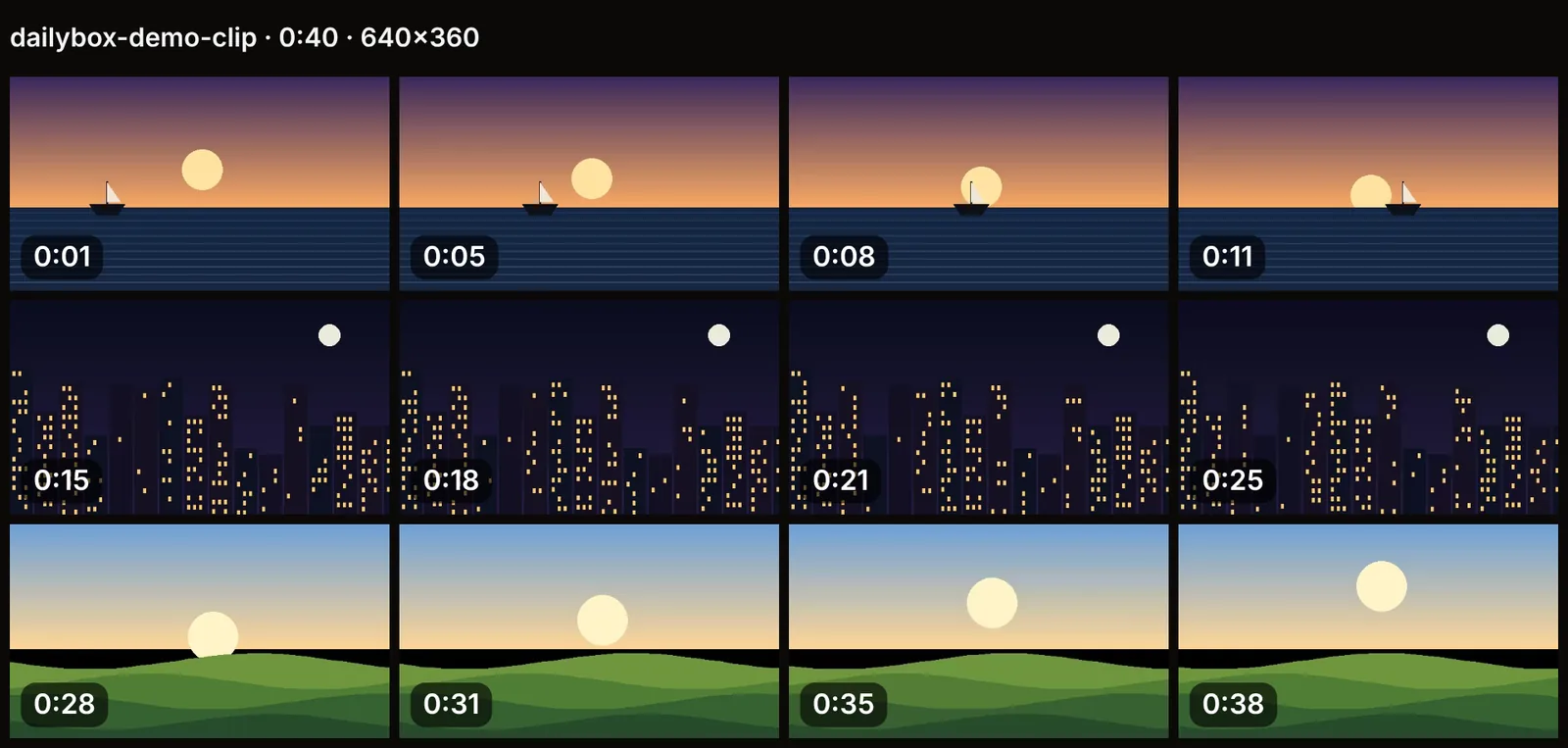
Frames are taken from the middle of equal parts of your range. If you use the whole video, frame times for 12 frames of a 40-second clip are 1.7 s, 5.0 s, 8.3 s, and so on.
3. Tidy the frames
Select frames you want, or remove ones you do not (a black frame, a blurred transition). You can also capture extra frames manually at exact times and add them. Regenerating automatic frames keeps frames you captured yourself.
4. Set the layout
The sheet panel has:
- Columns and rows (rows can be automatic).
- Spacing between frames.
- Background color.
- Timestamps and frame numbers on or off.
- Header showing the file name, duration and dimensions, on or off.
- Output width (1280, 1920, 2560 or 3840 pixels).
- Only selected frames, to build the sheet from a subset.
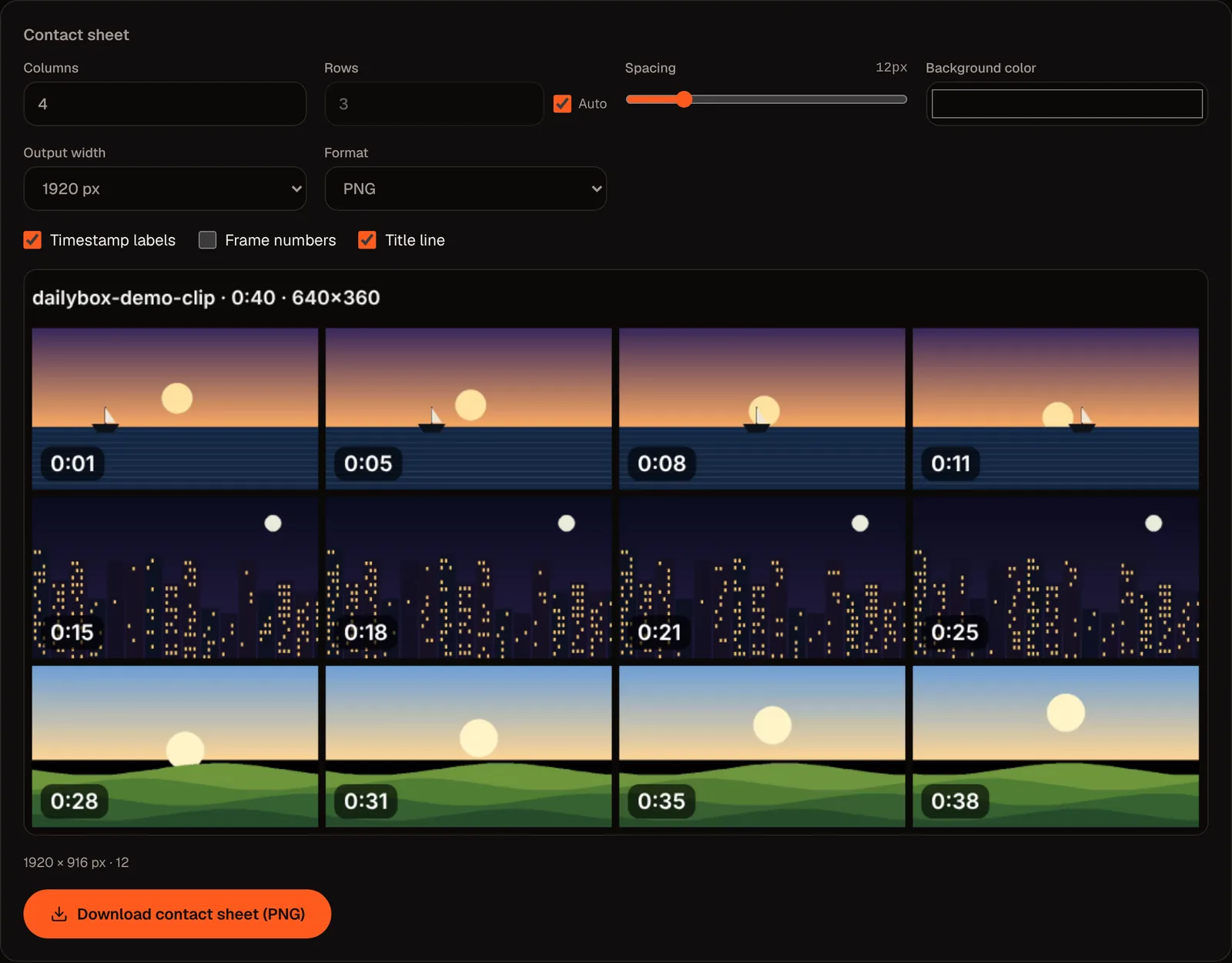
A live preview shows the result before you export it.
5. Choose the format and export
Export PNG for sharp text and crisp edges, JPG for smaller files, or WebP where your browser supports it. You can also download individual frames or all frames as a ZIP at the same time.
Choosing columns, frames and size
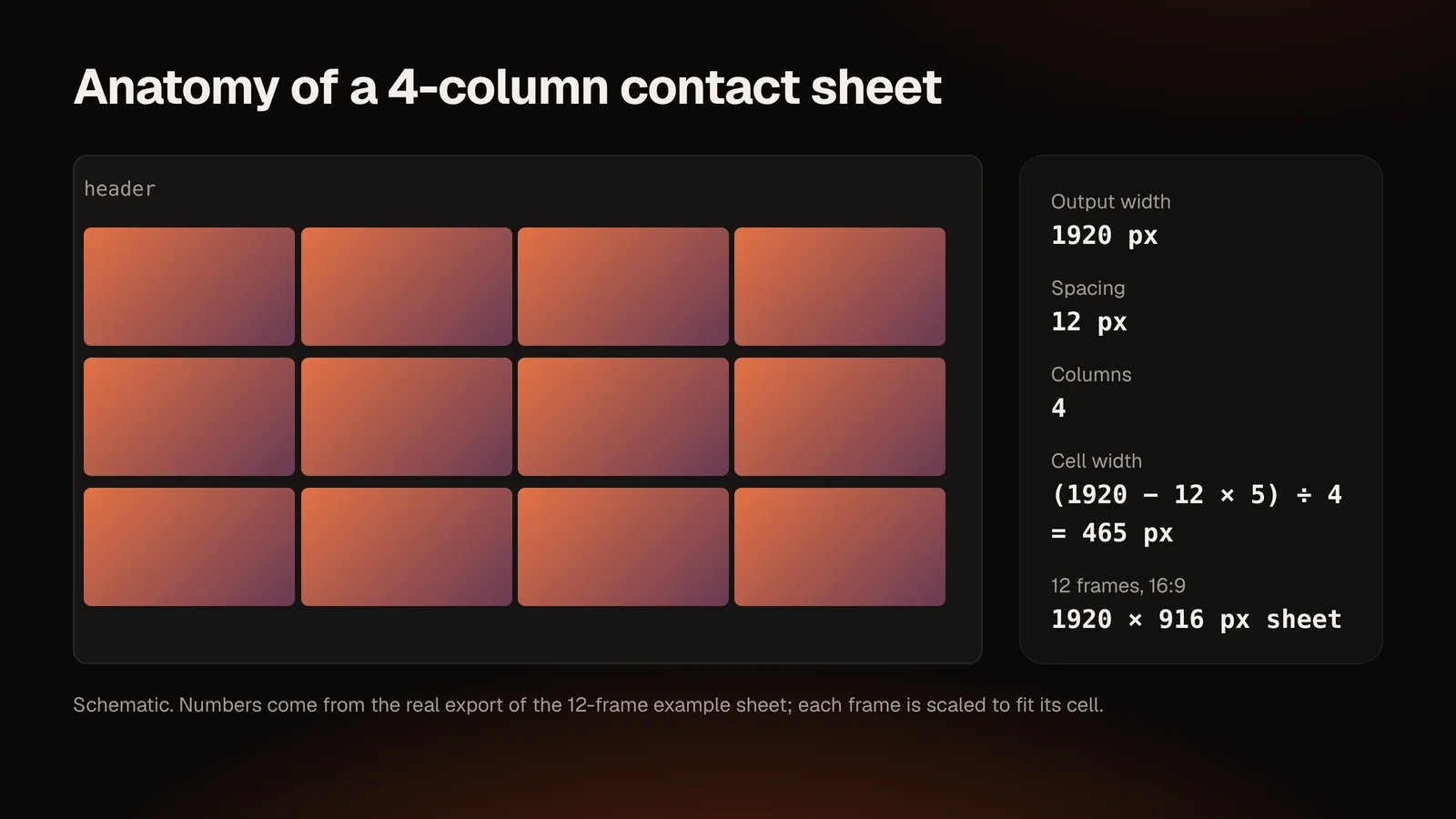
For a 16:9 video at the default 1920-pixel width and 12-pixel spacing, each cell comes out about 465 pixels wide with four columns. Here is how layout choices play out:
| Frames | Columns | Rows (auto) | Typical use |
|---|---|---|---|
| 6 | 3 | 2 | Quick summary for a message |
| 12 | 4 | 3 | Standard overview |
| 20 | 5 | 4 | Longer videos, more detail |
| 24 | 6 | 4 | Dense overview; use a wider output |
| 48 | 8 | 6 | Archive overview; export at 3840 px wide |
Guidelines:
- Readable labels. More columns means smaller cells and smaller labels. If timestamps look cramped, reduce columns or increase output width.
- Match the frames to the cell. Each cell shows the frame scaled to fit. The tool warns when cells are wider than the captured frames, because the sheet would look soft; capture larger frames in that case.
- Very large sheets have limits. Browsers cannot create images with unlimited dimensions. The tool refuses a sheet beyond 16,384 pixels on a side or about 64 million pixels in total, and tells you so.
Making the sheet look professional
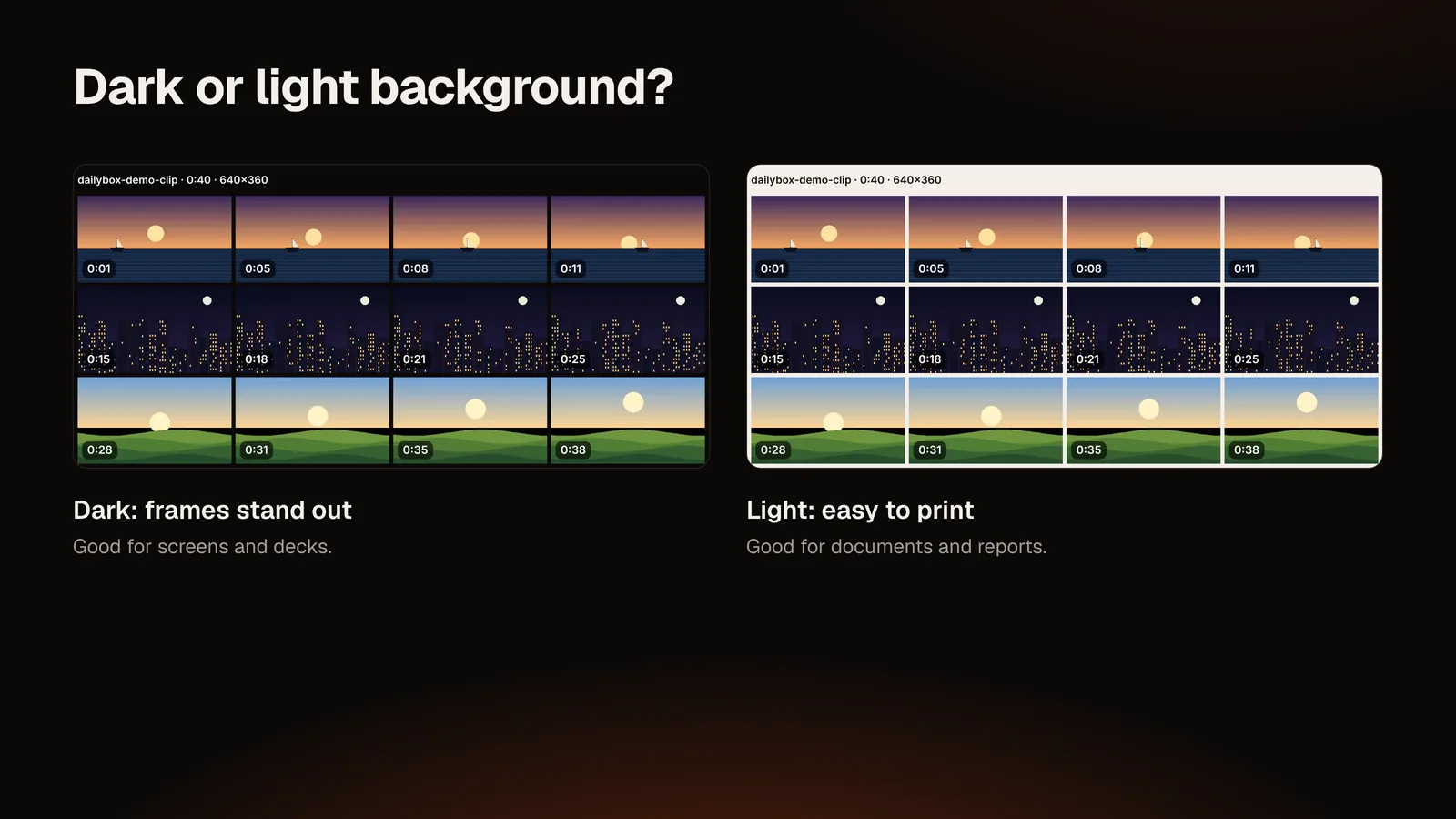
- Dark backgrounds make frames pop and reduce visual noise. A neutral light background suits print and reports.
- Consistent spacing. 8–16 pixels works for most sheets.
- Keep timestamps on when the sheet is used to navigate a video.
- Turn numbers on when people will discuss "frame 7".
- Leave the header on for archives (it shows the file name, duration and dimensions), off for clean presentation images.
- Curate. A smaller set of good frames beats many near-duplicates.
Common problems
| Problem | Why it happens | Fix |
|---|---|---|
| Frames at the very start look black | Many videos fade in | Set the start time a little later |
| Sheet looks soft | Cells are larger than the captured frames | Capture frames at a larger size, or reduce the output width |
| Export refused as too large | Sheet exceeds browser canvas limits | Fewer rows, smaller output width |
| Frame not at the requested time | The browser seeks to the nearest decodable point | Nudge by 0.1 s and recapture |
| Video will not load | Unsupported format or codec | Convert to MP4 (H.264) |
| Browser slows down | Large video or too many big frames | Use smaller frame sizes or fewer frames |
Privacy
The video file is opened locally and is never uploaded to DailyBox. The temporary link used to play it is released when you remove the video or leave the page. No account is needed.
Alternatives
Desktop applications and command-line tools can also make contact sheets, often for batches of many videos at once. Examples include free Windows utilities and the open-source command-line program vcsi. They can read more formats than a browser, but you must install them. The browser tool suits one video at a time, quickly, with a live preview.
Conclusion
A contact sheet turns a long video into something you can scan. Extract evenly spaced frames, remove the weak ones, set columns and timestamps, preview and export.
Make your own: open the Video Thumbnail & Contact Sheet Maker. To extract single exact frames, read How to Extract Frames from a Video Online; for many frames, see Video to Image Sequence.
Notes: Cell size computed from the tool's layout rule: (width − spacing × (columns + 1)) ÷ columns, so (1920 − 12 × 5) ÷ 4 = 465 px. vcsi is an open-source tool; verify features on its project page. Layout rows in the table are auto-calculated (frames ÷ columns, rounded up).
Questions and answers
What is a video contact sheet?
A single image containing a grid of frames from a video, usually labelled with timestamps.
How many frames should I include?
Twelve is a good default for a short clip. Use 20 to 24 for longer videos; more than that is better as a high-resolution export.
Can I add timestamps and frame numbers?
Yes. Both can be switched on or off independently.
Can I choose the background color?
Yes, any color.
Can I export as PNG, JPG or WebP?
PNG and JPG always; WebP when your browser can save it.
Does it make a contact sheet from several videos?
No. It works on one video at a time.
Is a contact sheet the same as a YouTube thumbnail?
No. A contact sheet is an overview of many frames. This tool captures frames; it does not add text, effects or other design elements for platform thumbnails.