Guide
How to Pick HEX Colors from Any Image
Published
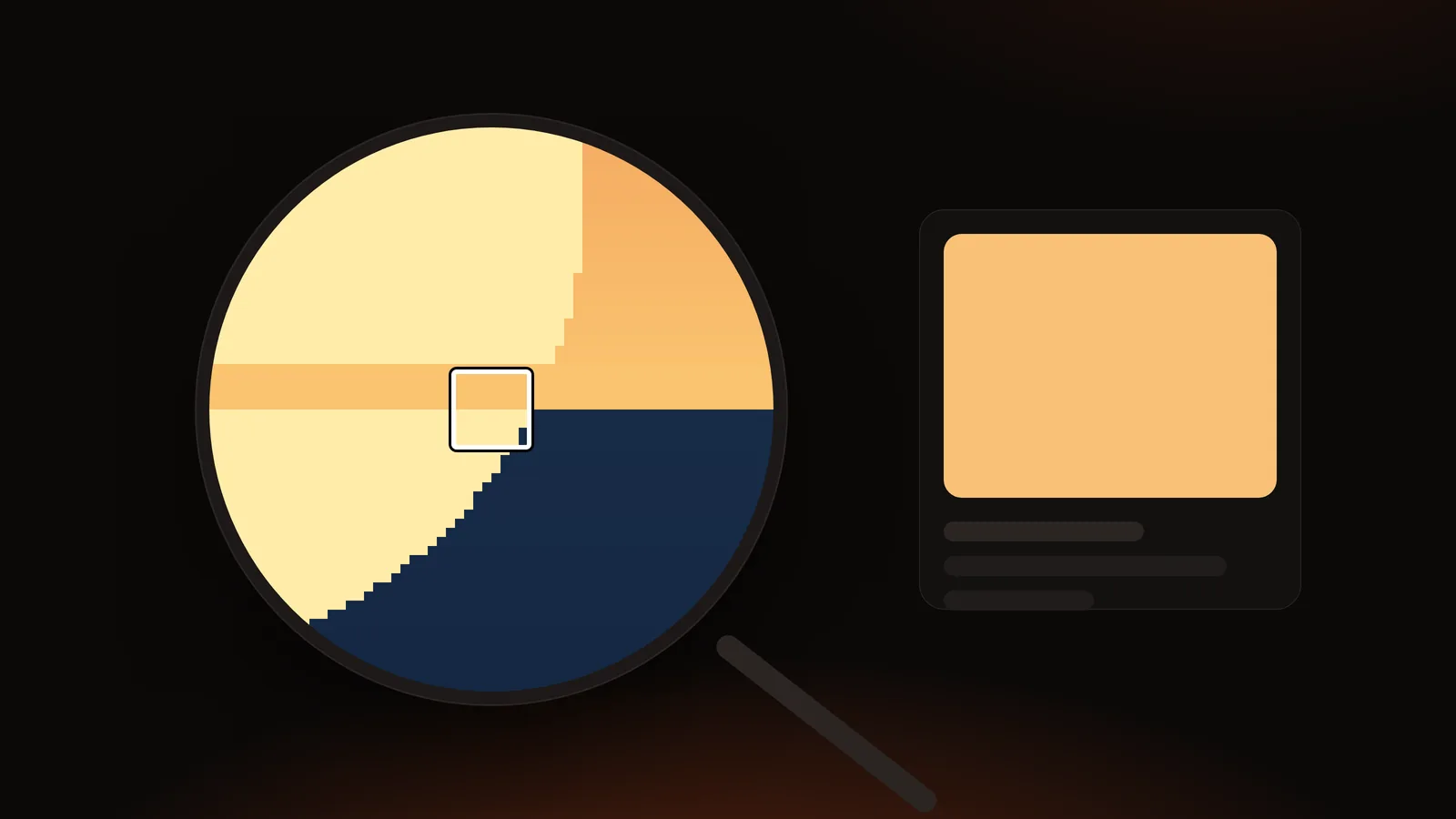
You have a screenshot, a logo or a photo, and you need the color code: the six characters after the # that a developer or design tool asks for. This guide shows the fastest way to get it, why the answer is sometimes "it depends", and how to avoid copying the wrong shade.
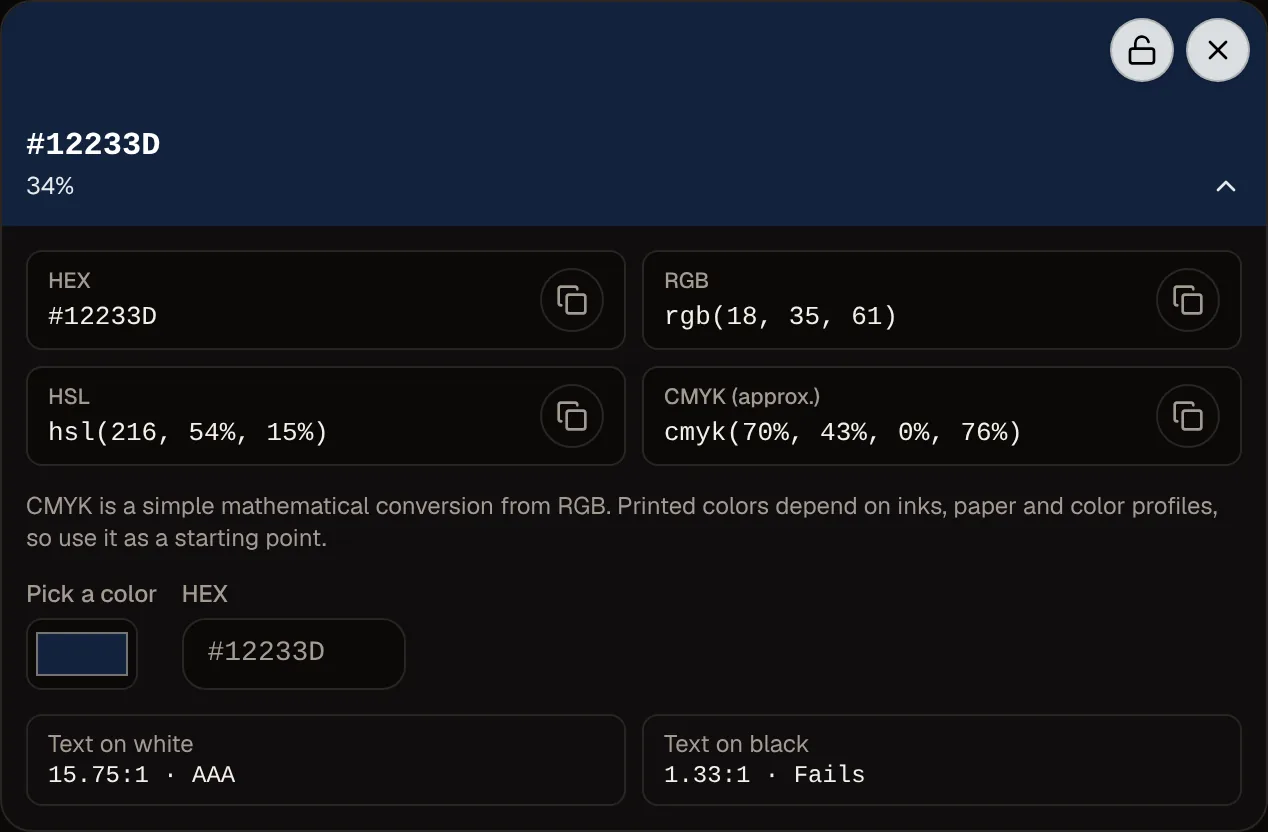
The short answer: open the image in a browser-based color picker, click the spot you want, and copy the HEX value. In the DailyBox Color Palette Extractor, load the image and click anywhere on it to add the color under the cursor to your palette; each color shows its HEX, RGB, HSL and CMYK values with a copy button. The image is processed in your browser.
What a HEX code actually is
A HEX color is three numbers written in base 16, one each for red, green and blue, each from 00 to FF (0 to 255 in everyday numbers).
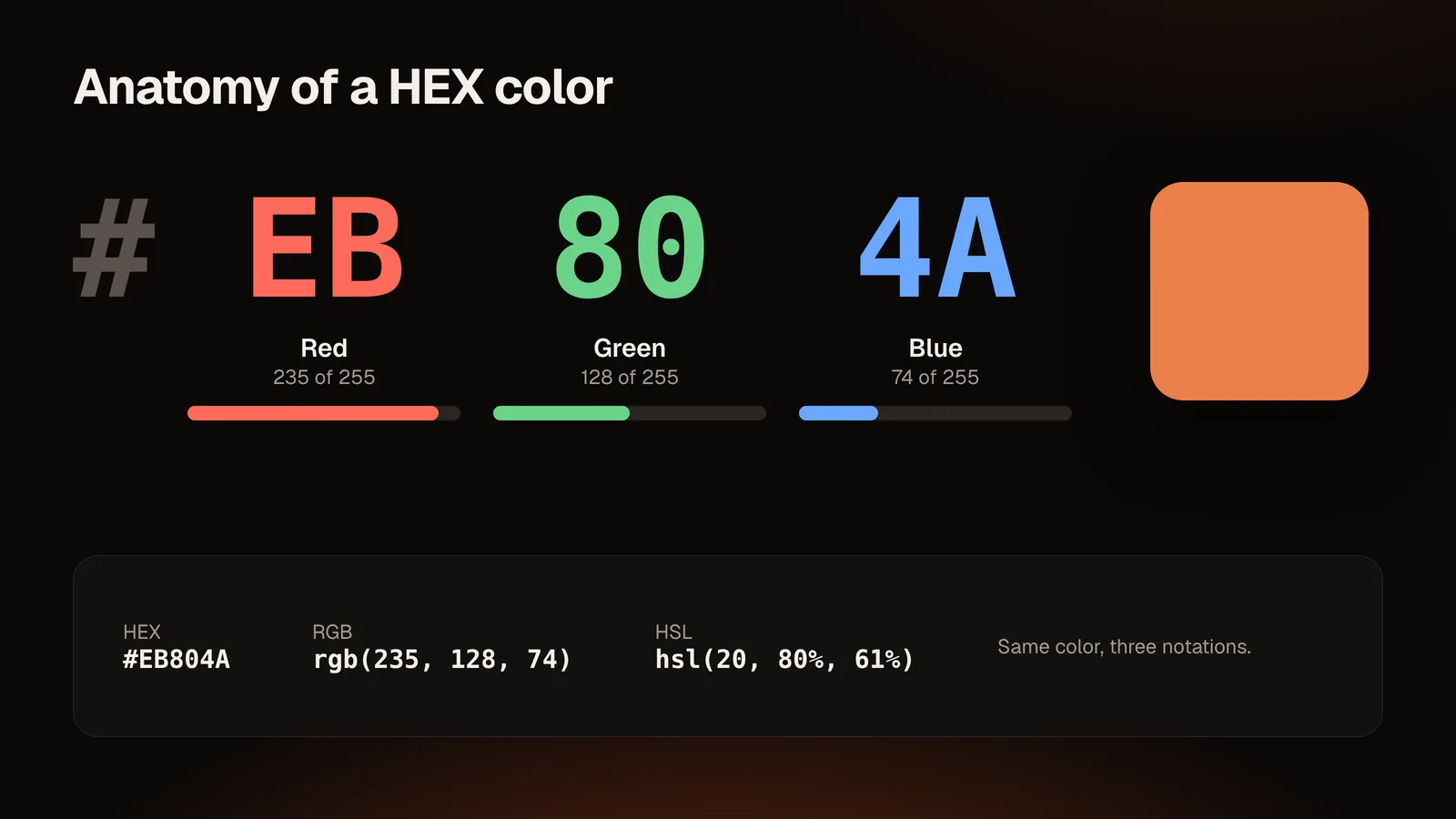
| Part | Meaning | Example #EB804A |
|---|---|---|
EB | Red amount | 235 |
80 | Green amount | 128 |
4A | Blue amount | 74 |
So #EB804A is the same color as rgb(235, 128, 74). HSL describes it differently (hue, saturation, lightness): hsl(20, 80%, 61%). All three notations can be used in CSS; they are three ways to write the same screen color.
Two shortcuts you will see: a three-digit form such as #F80 is shorthand for #FF8800, and CSS also allows an eight-digit form where the last two digits set transparency.
Step by step: get the HEX of a color in an image
- Open the picker. Go to the Color Palette Extractor and drop the image in (or use browse).
- Look at the extracted palette first. The tool already lists the dominant colors with HEX codes. If the color you want is a big area of the picture, it is probably there.
- Click the image for a specific spot. The tool adds the color under the cursor to the palette. Add as many as you like.
- Copy the code. Each color has copy buttons for HEX, RGB, HSL and CMYK. Copy the format your project needs.
- Fine-tune if necessary. Open the color's details and edit the HEX if you need a small adjustment.
- Save the set. Copy the full palette as CSS variables or JSON, or download it as a PNG or SVG.
On a phone, tap the image to add a color. Fingers are less precise than a mouse, so zoom the image on your device first if the target is a thin line or small icon.
Exact pixel or average? Why codes differ
If you click the same spot in two different tools you may get two codes. Here is why:
- Pixel versus neighborhood. Some pickers read one pixel; some average a small area to smooth noise. A photo's pixel-to-pixel noise means two neighboring pixels can differ by a few units even on what looks like a flat wall.
- JPEG compression. JPEG changes colors slightly around edges and in smooth gradients. A logo saved as JPEG may no longer contain its exact brand color. A PNG of the same logo will.
- Color profiles. Photos from phones and cameras may use a wider color space than the sRGB that most web colors assume. Browsers convert on display, and the numbers you read are normally in sRGB, but the conversion can shift saturated colors.
- Screens. Your display's calibration changes how a color looks, not the number stored in the file.
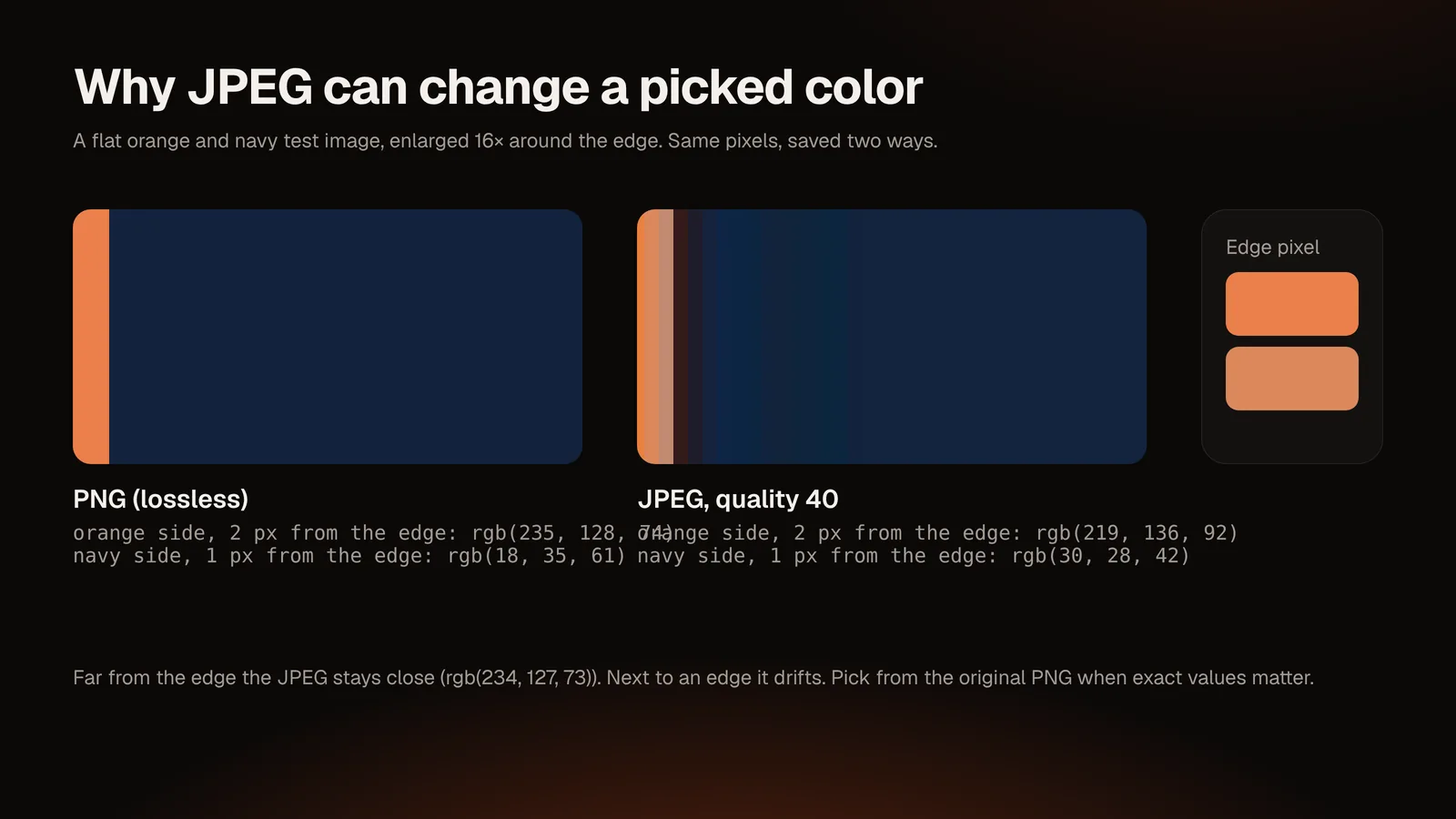
Practical rule: for brand colors or flat graphics, use the original file (preferably PNG or SVG) and click the center of a flat area. For photos, pick a representative spot or use the palette, then judge the result visually.
Choosing between picking and extracting
| You want… | Use |
|---|---|
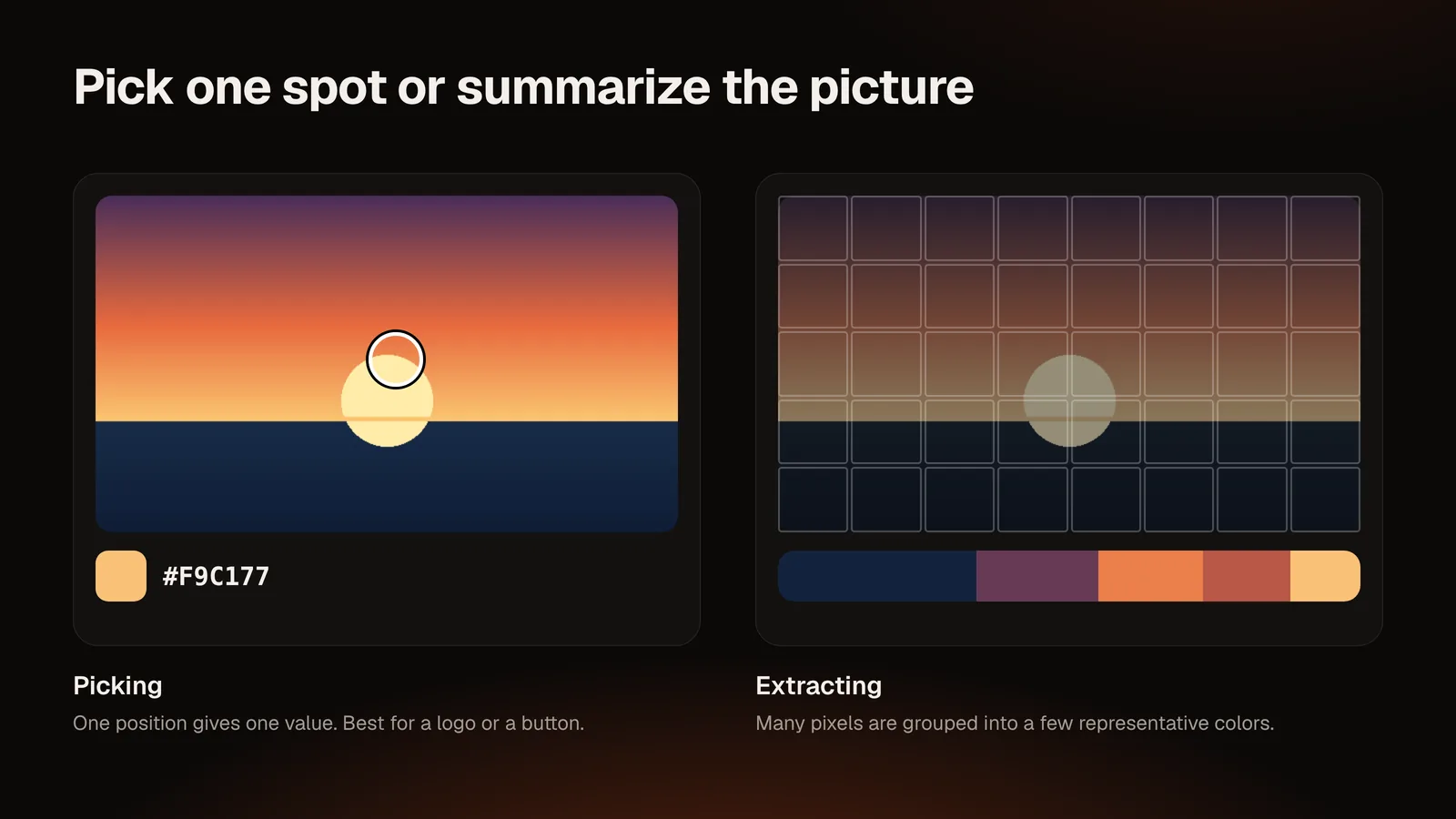
| The exact color of one element (a button, logo, flower) | Click it with the picker |
| The overall color scheme of a picture | Extract a palette (guide) |
| The same color in another notation | Copy the other format, or use the Color Converter |
HEX, RGB, HSL or CMYK: which to copy?
- HEX is the compact default in CSS and design tools.
- RGB is convenient when you need transparency (
rgba) or to compute with the numbers. - HSL is the easiest to adjust by hand: raise lightness for a lighter tint, lower saturation for a calmer one.
- CMYK is for print briefs. The tool's CMYK is a mathematical conversion from RGB, so printed results depend on inks, paper and color profiles. Ask your printer for a proof before you commit.
A quick example
In a sunset illustration we made for testing, the Color Palette Extractor listed #F9C177 (also rgb(249, 193, 119) and hsl(34, 92%, 72%)) as the warm sand tone, and #12233D as the dominant deep-sea color. Placing the lighter color on the darker one gives a contrast ratio of about 9.7:1, comfortably above the 4.5:1 that WCAG recommends for normal-size text. That is how a picked color becomes a usable text/background pair, not just a number.
Common mistakes
- Picking from a screenshot of a screenshot. Every re-save can change colors. Go back to the source file.
- Picking from a JPEG when you have the PNG. Use the lossless version.
- Copying the first pixel you click on a photo. One noisy pixel is not "the color" of the object; click several spots or use the palette.
- Assuming print will match the screen. It will not without a proof.
- Forgetting the `#`. CSS needs it (
color: #EB804A;).
Conclusion
Picking a HEX code is the easy part: click and copy. Getting the right code means starting from the best source file, understanding that photos are noisy, and choosing between picking and extracting. When you need several colors that work together, extract a palette instead of clicking one by one.
Try it now: open the Color Palette Extractor, drop in an image and click the color you need.
Notes: WCAG contrast thresholds from W3C WCAG 2.x. The example values come from a real run of the tool on a test illustration; shades can shift slightly between runs.
Questions and answers
How do I get the HEX code of a color in a photo?
Load the photo in a color picker, click the spot and copy the HEX. In the Color Palette Extractor clicking the image adds the color under the cursor.
Why does the HEX look different from what I see?
Screen calibration, color profiles and compression all affect appearance. The code describes the file's pixel; your eye sees it through a display.
Is a HEX code the same as an RGB value?
They are the same color in two notations: two hex digits per channel versus three decimal numbers.
Can I pick a color from a screenshot of a website?
Yes, if the screenshot is an image file. Remember that screenshots reproduce rendered pixels, including anti-aliasing and any compression.
Can the tool give me a Pantone or paint code?
No. It reports HEX, RGB, HSL and CMYK values and does not look up Pantone or paint brand catalogs.
Is my image uploaded?
No. The image is read in your browser. Only the optional AI consultant sends data (the HEX codes you choose, never the image).
Does it work for transparent PNGs?
Transparent pixels are skipped when extracting a palette, so you get the visible colors.